Life as an operator can be very hectic and sitting at a computer is not always feasible.
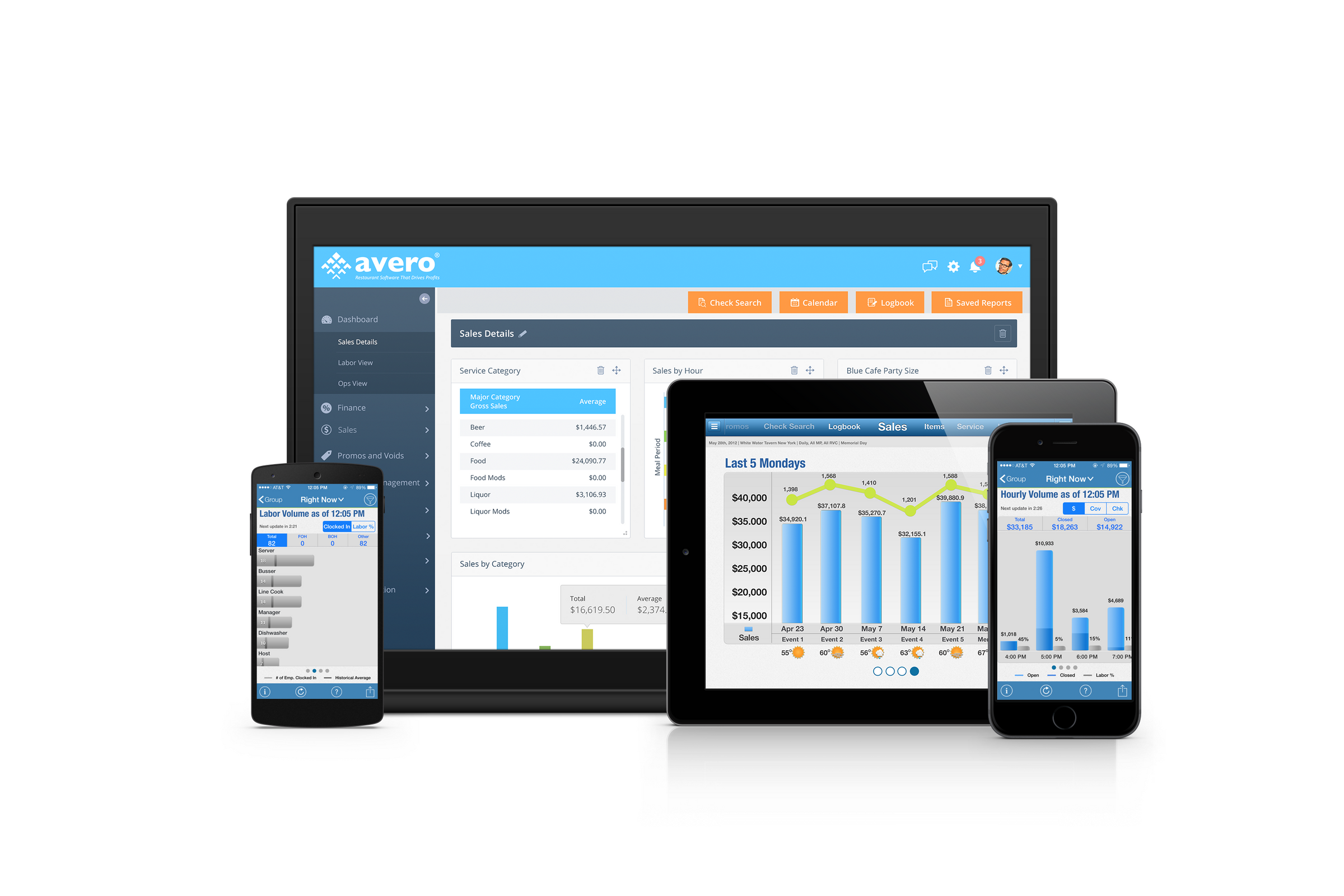
Avero Mobile is designed for the hospitality industry, giving you immediate access to key operational data while on the go. Critical reports, insights, and decision-making capabilities are in the palm of your hand, delivered through a powerful, simple interface.
Avero Mobile is available as a free companion for all Avero customers. When using Avero Mobile, be sure to use the same credentials to log in as you would for the website.
In this article, the following topics will be discussed:
The Avero App - Avero Logbook
Avero has a mobile application for logbook notes and sales reporting - you can find them in your app store and they are available on iOS and Android devices.
See below for more information on installing and using the Avero apps to manage your store's productivity on the go!
The Avero Logbook App
Installing the Avero Logbook App
The most-used on the go feature is Avero Logbook. This app puts all shift notes and duties/checklists in one place, syncs in real-time with the online application, and allows user notes to become real-time resolution conversations.
The app also pulls in real-time sales reporting if available for your Point of Sale. To see if real-time reporting is available with your POS System, review our list of POS Integrations.
It is accessible anywhere and updates in real-time!
Install Logbook to sync shift notes in real-time!
- Search for 'Avero Logbook' in your app store, from your device.
- Select the Avero Logbook app, recognizable by our name and the notebook icon:
- Once installed, open the app and sign in with the same Avero credentials you use to sign in online.
- Take a look at our Logbook Best Practices to get the most out of your shift notes and checklists!
Find it in the App Store
New Beta Features!
The latest update of the Avero Logbook App now includes a selection of useful Right Now reports that can be navigated through using the menu at the bottom of your screen.
Please note- Right Now data is limited to select POS systems, check availability here.
Right Now Data Reports
- Hourly Volume: Sales and Labor % of Sales by hour
- Labor Volume: Labor Usage by Job Category
- Employee Sales Volume: Sales by Employee by hour
- Category Sales: Item Sales by Item Category.
New App Layout
The full Avero app is available in your app store. This app centralizes all your sales and productivity reporting and, depending on your POS System, updates in real-time throughout the shift.
Navigating the Avero Mobile App
Navigation Tools in Avero Mobile
When in the Avero Mobile application, there are several tools available to you in the navigation bar. These tools are as follows:
- Filter - adjust the date, meal periods, revenue centers and more.
- Export - share this information with your team via email or print
- Help - Quick navigation tips for the current tab
- Information - see the current filters for your report, the logout option and the About option.
Reports via the Tabs in Avero Mobile
Within Avero Mobile, there are several tabs that will provide you with different information. The following tab options will appear depending on your Avero subscription.
Group Tab
This Group tab gives you the perfect overview of your business across the whole enterprise. You can compare your businesses (depending on your subscription) by Today's Sales & Labor, Total Gross/Net Sales, Total Avg Check (Covers), Total Covers, Labor % of Gross Sales, and Labor Cost.
When accessing this tab, keep the following in mind:
- The red line represents your sales for the same time period last year, allowing you to quickly understand how your businesses are performing year over year.
- The black line represents your budget figures (available with the finance module). This area is perfect for keeping track of the sales and labor goals you have for your enterprise.
- Need to look at a single location? Tap on the bar for the desired location to drill down into more reporting options for that business.
Sales Tab
The Sales tab provides you with a visual representation of your sales for an individual outlet. This area is a great way to Similar to the Group tab, the Sales tab allows you to view year over year data.
When accessing this tab, keep the following in mind:
- This tab breaks the information down further by food and beverage sales.
- View your data by Total Avg Check, Total Checks, and the Last Six Like Days.
- By holding the bar graphs you can get quick snapshots on the go!
Items Tab
The Items tab allows you to view the Item Sales for your restaurant.
When accessing this tab, keep the following in mind:
- Click on a global category to drill down into a more detailed report showing all the items in that category.
- Continue to drill down to server information to see how they are selling the selected item.
- This tab is a great way to view your product mix, create new weekly specials, and track a quick contest!
Check Search Tab
The Check Search tab allows you to pull up a check without leaving the floor.
When accessing this tab, keep the following in mind:
- Enter your filters and click the magnifying glass to search.
- Drill down further to pull up the itemized check you're looking for.